Practical solutions for communication, technology and independence
Practical solutions for communication, technology and independence
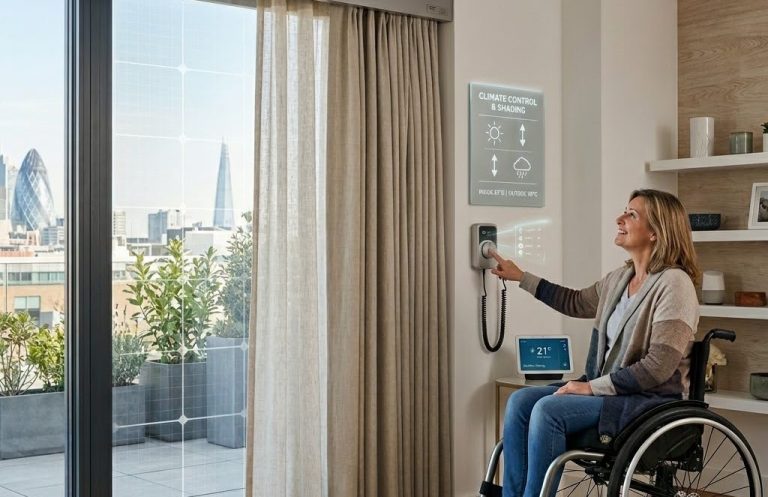
For many people, using technology is as simple as touching a screen, clicking a mouse or pressing a keyboard. But for someone with a physical disability, limited movement or reduced coordination, these everyday tasks can present significant challenges.
The good news is that there isn’t just one way to access technology. With the right access method, many people can communicate, learn, play, work and live more independently.
The key is finding the solution that best matches the individual—not the other way around.
What Is an Access Method?
An access method is simply the way someone controls a computer, tablet, communication device, games console or other piece of technology.
There are many different options available, and what works well for one person may not be suitable for another.
The aim is always to find the method that is comfortable, reliable and as effortless as possible.
Start With the Individual
It can be tempting to focus on the latest equipment or exciting new technology, but the starting point should always be the person.
Consider questions such as:
The answers help shape the most appropriate solution.
There Is No “Best” Access Method
Families often ask, “Which access method is best?”
The honest answer is that there isn’t one.
The best access method is the one that allows the individual to achieve their goals comfortably, efficiently and consistently.
Sometimes the simplest solution is also the best.
Common Access Methods
Standard Touchscreen
For many people, a touchscreen is the quickest and most intuitive option.
Adjusting settings such as touch duration, touch accommodation or screen sensitivity can sometimes make a standard tablet much easier to use without any additional equipment.
Keyguards
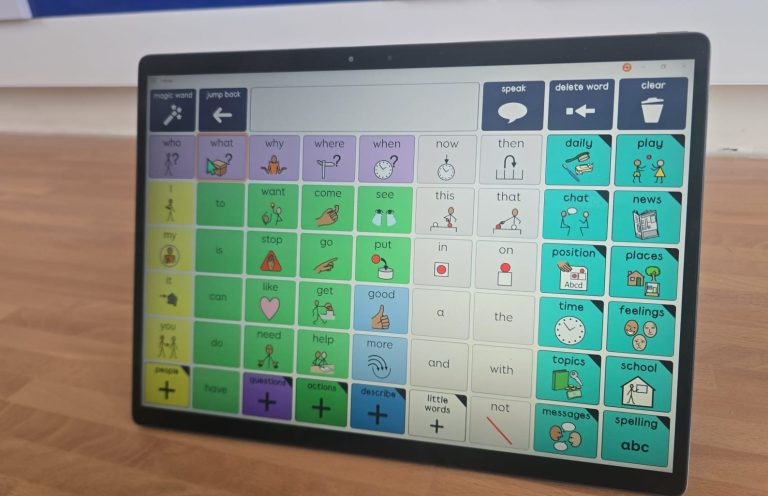
A keyguard is a rigid frame that sits over a touchscreen.
It helps users accurately select buttons by preventing accidental touches and providing physical guidance to each target.
For many AAC users, a keyguard can dramatically improve speed and accuracy.
Alternative Mice
Not everyone finds a standard mouse comfortable.
Depending on the individual’s needs, a trackball, joystick, vertical mouse or touchpad may offer greater control while reducing fatigue.
The best choice depends on movement, posture and comfort.
Switch Access
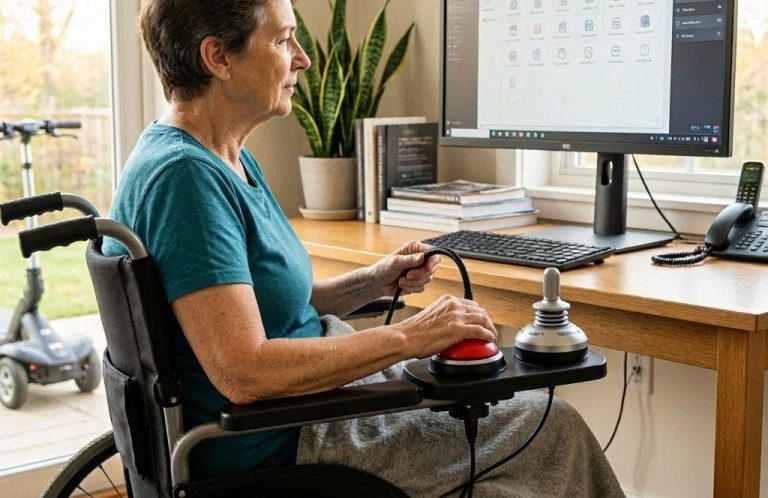
A switch allows someone to control technology using a single reliable movement.
That movement could be a press with a hand, elbow, foot, head or even another part of the body.
With the right setup, switches can be used to communicate, access a computer, control toys, play games and interact with smart-home devices.
Eye Gaze
For individuals with very limited physical movement, eye-gaze technology can provide access by tracking where the user is looking.
Eye gaze has opened up opportunities for communication and independence for many people who would otherwise struggle to access technology.
However, it isn’t suitable for everyone and requires careful assessment and setup.
Head Tracking
Modern head-tracking systems use a camera to move the cursor as the user moves their head.
Combined with dwell clicking or switches, this can provide effective access to computers and tablets without needing to use hands.
Voice Control
For people with clear speech but limited hand function, voice control can be an excellent option.
Many computers, tablets and smartphones now include powerful voice-control features that allow users to open apps, dictate text and control their device using spoken commands.
The Importance of Positioning
Even the best technology can become difficult to use if it isn’t positioned correctly.
A device that is too high, too low or too far away may reduce accuracy and increase fatigue.
Simple adjustments to seating, mounting, screen angle and posture can often improve access more than changing the equipment itself.
Remember That Needs Can Change
Access methods should never be considered permanent.
Children grow.
Skills develop.
Medical conditions change.
Technology improves.
What works well today may not be the best solution next year.
Regular review helps ensure that technology continues to meet the individual’s needs.
Don’t Be Afraid to Try Different Options
Finding the right access method is often a process of exploration.
Trying different approaches can provide valuable information about what feels natural, what causes fatigue and what allows the greatest level of independence.
Sometimes a combination of access methods works best. For example, someone might use a touchscreen at home, switches for gaming and voice control for writing.
Seek Specialist Advice
Choosing an access method isn’t about buying the most expensive equipment—it’s about understanding the person’s abilities, goals and everyday environment.
A specialist assessment can help identify practical solutions that support communication, education, leisure and independence, while avoiding unnecessary expense.
Final Thoughts
The right access method can transform the way someone interacts with the world.
Whether it’s selecting a symbol on an AAC device, sending an email, playing a favourite game or switching on a light independently, the right solution can open doors to greater participation and confidence.
Every individual is different, and there is rarely a single “perfect” answer. The best outcomes come from taking time to understand the person, considering all the available options and choosing a solution that fits naturally into everyday life.
When technology is matched to the individual, rather than expecting the individual to adapt to the technology, amazing things can happen.
When people think about assistive technology, they often assume they need expensive specialist equipment. While specialist solutions are invaluable for many people, it's easy to overlook the powerful accessibility features already built into everyday devices.
Whether you use a Windows PC, Mac, iPad, iPhone or Android device, there are a wide range of accessibility tools available at no extra cost. These features can improve communication, increase independence and make technology easier to use for people of all ages.
Here are five built-in accessibility features that are well worth exploring.
1. Voice Control and Speech Recognition
Typing isn't the only way to use a computer or tablet.
Modern devices include excellent voice control features that allow you to dictate text, open apps, navigate menus and even control your device using spoken commands.
For people with reduced hand function, fatigue or mobility difficulties, voice control can make everyday tasks much quicker and more comfortable.
Remember that voice control works best in a quiet environment and may require a little practice, but many users are surprised by how accurate it has become.
2. Magnification and Zoom
If text or icons are difficult to see, increasing the size of everything on screen can make a huge difference.
Most devices include built-in magnification tools that allow you to zoom in on specific parts of the screen or increase the overall display size.
Many people also benefit from adjusting text size, contrast or using a dark theme to reduce visual strain.
Small visual changes can make technology much more comfortable to use.
3. Switch Access
Many people don't realise that phones, tablets and computers can be controlled using one or more switches.
Switch access allows someone with limited movement to navigate menus, select items and interact with their device using a single reliable movement.
Depending on the device, switches can be connected using Bluetooth, USB or specialist interfaces.
For some people, switch access opens the door to communication, learning, gaming and greater independence.
4. Accessibility Shortcuts
Accessibility features are only useful if they're easy to access.
Fortunately, most devices allow you to assign a shortcut that instantly turns favourite accessibility features on or off.
For example, you might create a shortcut for Magnifier, VoiceOver, Colour Filters or Switch Control.
Taking a few minutes to set up these shortcuts can save time and make accessibility tools much easier to use every day.
5. Touch and Mouse Adjustments
Not everyone can use a touchscreen or mouse in the same way.
Many devices allow you to adjust settings such as touch duration, pointer speed, double-click speed, drag lock and accidental touch prevention.
These simple changes can improve accuracy, reduce frustration and help someone use their device more confidently without needing additional equipment.
Never underestimate the difference that a few small adjustments can make.
Start with What You Already Have
One of the biggest misconceptions about assistive technology is that it always requires specialist equipment.
In reality, many accessibility challenges can be reduced by exploring the features already available on your existing devices.
Before purchasing new equipment, it's always worth taking the time to explore the accessibility settings on your computer, tablet or smartphone. You may find that the solution you need is already there.
Final Thoughts
Accessibility isn't always about buying something new—it's about making the most of the technology you already own.
Built-in accessibility features continue to improve every year, giving more people the opportunity to communicate, learn, work and enjoy technology independently.
If you're unsure which features might be most helpful for you or someone you support, specialist advice can help identify the options that best match individual needs and goals.
Sometimes, a simple change in the settings is all it takes to make technology more accessible.
For many parents, gaming can feel like little more than screen time. However, for many children and young people with disabilities, gaming is much more than entertainment. It can be a way to communicate, build friendships, develop skills and take part in activities that many of us take for granted.
With the right support and equipment, gaming can become an enjoyable and inclusive experience for almost everyone.
Why Gaming Matters
Gaming allows children to explore, learn, solve problems and express themselves in a fun and motivating way. It can help develop:
Perhaps most importantly, it gives children the opportunity to participate alongside friends, siblings and classmates.
For many young people, gaming is where friendships are formed and maintained.
Accessibility Is Better Than Ever
Over the last few years, games consoles, PCs and tablets have become far more accessible.
Many now include features such as:
These built-in features often make a significant difference without the need for specialist equipment.
There Isn't One Perfect Controller
One of the biggest misconceptions is that everyone needs the same adaptive controller.
In reality, choosing the right controller depends on the individual.
Some people may benefit from:
The goal is always to find the most comfortable and reliable way to play.
Start Simple
It's easy to become overwhelmed by the range of specialist gaming equipment available.
Before purchasing anything expensive, ask yourself:
Sometimes a small adjustment to the controls is all that's needed.
Every Game Is Different
Not every game places the same demands on the player.
Some require quick reactions and precise timing, while others allow players to progress at their own pace.
Games that offer customisable controls, adjustable difficulty settings and slower gameplay can often provide a more enjoyable experience.
The right game is just as important as the right equipment.
Gaming Is Social
Gaming isn't just about playing a game.
Many children use gaming to:
For children who find face-to-face interaction challenging, gaming can provide valuable opportunities to connect with others in ways that feel comfortable and enjoyable.
Safety Still Matters
As with any online activity, it's important to talk about online safety.
Parents should:
Gaming should be a positive part of everyday life rather than replacing other important experiences.
Don't Be Afraid to Experiment
Finding the right gaming setup is often a process of trial and error.
A controller that works well for one child may not suit another.
Trying different controllers, switches, mounting systems or accessibility settings can help identify what works best without rushing into expensive purchases.
Seek Specialist Advice When Needed
If your child is finding gaming difficult because of physical, sensory or communication needs, specialist advice can help.
An assessment can identify practical solutions that match your child's abilities, interests and goals, helping them enjoy gaming with greater confidence and independence.
The aim isn't simply to make gaming possible—it's to make it enjoyable.
Final Thoughts
Gaming should be for everyone.
With today's technology, accessibility features and adaptive equipment, more children and young people than ever before can enjoy the social, educational and recreational benefits that gaming offers.
The best gaming setup isn't necessarily the most expensive—it's the one that enables your child to join in, have fun and play alongside others with confidence.
Every child deserves the opportunity to play, explore and belong. Sometimes, the right technology is all it takes to open that door.
AAC is there to give someone a voice and a way to communicate with the people around them. But just like any other tool, it needs to be useful, relevant and enjoyable if we want someone to keep using it.
If an AAC device is mostly used for answering questions, making requests or completing tasks, it can quickly start to feel like work. The good news is that there are lots of simple ways to make AAC a natural and motivating part of everyday life.
Start With What They Love
The most powerful motivator is often the person's own interests.
If they love trains, talk about trains. If they enjoy music, use AAC to choose songs. If they're interested in Minecraft, use the device to talk about what they're building. Communication becomes much more meaningful when it is connected to something the person genuinely enjoys.
Don't Make AAC Just About Asking for Things
Requesting is an important reason to communicate, but it is only one part of communication.
AAC can also be used to:
The more purposes AAC has, the more valuable it becomes.
Let Them Have a Say
Give the person opportunities to make genuine choices throughout the day.
They might choose:
Make sure the choices are real. If the person chooses something, allow that choice to influence what happens whenever possible. Having control over your own life is highly motivating.
Model Without Expecting an Answer
One of the best ways to encourage AAC use is to model it yourself. Use the device while you talk, selecting a few important words rather than trying to model every word you say. Most importantly, don't immediately expect the person to copy you. They may watch for weeks or months before they start using something independently. That's okay.
Modelling shows them that AAC is available whenever they want to communicate.
Make Room for Fun
AAC doesn't have to be serious.
Use it for silly conversations, jokes, songs and games. Talk about funny things that happen during the day. Make deliberately ridiculous choices. Use the device to tell someone you're wearing "silly socks" or that the dog is "very smelly!" Fun creates positive experiences around communication.
Use AAC Everywhere
Try not to think of the AAC device as something that is only used at home, school or during therapy.
Take it along when you:
The more places AAC is used, the more natural it becomes.
Keep It Available
An AAC device can't be useful if it's sitting in another room. Try to keep it close and accessible throughout the day, just like you would keep your own phone nearby. If the device is difficult to carry, consider whether a suitable case, mounting system or carrying solution could make it easier to have available.
Avoid Turning AAC Into a Test
It's tempting to ask questions such as:
"What does that say?"
"Where's the blue one?"
"Tell me what you want."
Sometimes questions are useful, but too many can make communication feel like a test. Instead, try making comments and responding naturally to what the person communicates. The goal is communication—not demonstrating that they know where a particular button is.
Celebrate Communication, Not Just Accuracy
A person's communication doesn't have to look exactly how we expect it to. A single word, symbol, gesture, facial expression or combination of methods can communicate something meaningful. Respond to the message rather than focusing on whether the person used the "correct" vocabulary or grammar.
Successful communication is about being understood and having an opportunity to participate.
Remember That Motivation Can Change
What motivates someone today might not motivate them next month. Interests change, people grow and circumstances change. Regularly reviewing the vocabulary, layout and content of an AAC system can help keep it relevant. If someone suddenly becomes much more interested in gaming, music, football or a particular television programme, consider whether their AAC system gives them the vocabulary they need to talk about those interests.
Give Them Something Worth Saying
Perhaps the most important point is this:
AAC should give someone something worth communicating about.
If the device is only being used to answer questions or request things, we may be missing the bigger picture.
People communicate because they have something to say, something to share, something to ask, something to protest about or something they simply want another person to know.
Our job is to make sure their AAC system is ready when they do.
Final Thoughts
Keeping AAC motivating isn't about constantly finding new rewards or activities. It's about making communication meaningful.
Follow the person's interests, give them genuine choices, model AAC naturally, make room for humour and conversation, and make sure their device is available when they need it.
Most importantly, remember that AAC belongs to the person using it.
It is their voice, their communication system and their way of participating in the world.
The more useful, enjoyable and empowering it becomes, the more likely it is to become a natural part of everyday life.
Gaming is a huge part of modern life. For many children, young people and adults, it is a way to relax, have fun, explore new worlds and spend time with friends and family. But what happens when a standard controller, keyboard or touchscreen is difficult to use?
This is where accessible gaming comes in.
Accessible gaming is about removing barriers that prevent someone from taking part in gaming. It can involve changing settings, adapting controls, using alternative access methods or choosing equipment that better matches the individual. Most importantly, accessible gaming isn't about changing what someone wants to play. It's about finding a way for them to play.
Who Can Benefit From Accessible Gaming?
Accessible gaming can benefit people with a wide range of physical, sensory, cognitive or communication needs. Someone might have difficulty with:
These challenges don't necessarily mean that gaming isn't possible. Often, a few changes can make a significant difference.
Start With the Game, Not the Equipment
It can be tempting to start by searching for an adaptive controller, but the first question should be:
What does the person want to play?
A child who loves Minecraft may have very different requirements from someone who enjoys racing games. A person who wants to play cooperatively with friends may need a different setup from someone who prefers slower single-player games. Understanding the person's interests and goals should always come before choosing equipment.
Use the Accessibility Features Already Available
Many modern games and consoles include accessibility settings that can make gaming easier. Depending on the game, these might include:
These features are often overlooked because they aren't always obvious when a game is first opened. Before buying additional equipment, explore the accessibility settings of the game and console.
Alternative Controllers
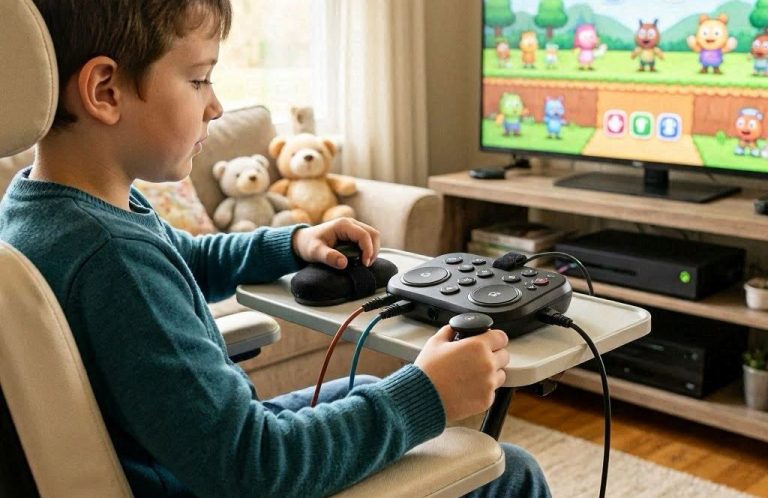
Sometimes changing the standard controller is enough. There are controllers available in different sizes and shapes, with different button layouts, joystick positions and resistance levels. Some people may find a smaller or lighter controller easier to hold, while others may benefit from larger buttons or a different layout.
The right controller depends entirely on the individual.
Switches and Adaptive Controls
Switch access can provide another way to control games. A switch can be operated using a reliable movement such as a hand, finger, head, foot or another part of the body. Depending on the game and setup, switches can be used to control individual actions or combined with scanning systems to provide access to more complex controls.
Adaptive controllers can also allow multiple switches and other input devices to be connected together, creating a setup tailored to the player's abilities.
One-Handed Gaming
Some games and controllers can be adapted for people who primarily use one hand. This might involve remapping buttons, using a controller designed for one-handed use or combining different input devices. It is worth experimenting with different arrangements rather than assuming that a standard controller is the only option.
Eye Gaze and Other Access Methods
For people with very limited physical movement, more specialist access methods may be appropriate. Depending on the individual, gaming can sometimes be accessed using:
These solutions can be particularly useful when conventional controllers aren't practical. However, specialist equipment isn't automatically better. The simplest reliable solution is often the best place to start.
Accessible Gaming and Communication
For someone who uses AAC, gaming can provide valuable opportunities for communication. They might want to:
Gaming can therefore become much more than an activity. It can create genuine reasons to communicate.
Gaming Is About Inclusion
One of the most important benefits of accessible gaming is participation. Being able to play alongside siblings, friends or classmates can provide a sense of belonging that is difficult to replace. The aim isn't necessarily to make someone play in exactly the same way as everyone else. It's about giving them a meaningful way to take part.
Don't Assume It Has to Be Expensive
Accessible gaming equipment ranges from simple, inexpensive adjustments to highly specialised solutions. Sometimes the answer is simply changing a setting or remapping a few buttons. Other situations may require switches, mounting equipment, adaptive controllers or specialist assessment.
Start with the person's needs and work upwards rather than buying expensive equipment first.
Finding the Right Solution
There is rarely a single solution that works for everyone. The right setup depends on:
Trying different approaches is often an important part of finding what works.
Final Thoughts
Accessible gaming isn't about making gaming easier for everyone. It's about removing unnecessary barriers for the individual. A standard controller may be perfect for one person and completely unsuitable for another. With the right combination of accessibility settings, alternative controls and specialist equipment, many people who previously couldn't access gaming can discover that gaming really is for them.
The most important question isn't:
"What equipment do we need?"
It's:
"What does this person want to do, and what is stopping them?"
Once you know the answer, you can start looking for a solution.
Tablets have become incredibly useful tools for communication, education, entertainment and everyday independence. Their portability and touchscreen interfaces make them particularly valuable for many people who find traditional computers difficult to use. However, a standard touchscreen isn't accessible to everyone straight out of the box.
The good news is that both iPad and Android tablets include a wide range of built-in accessibility features that can make them easier to see, hear and control.
Start With the Person
Before changing settings or buying additional equipment, think about what the person is actually finding difficult.
Are they struggling to:
Understanding the problem is the first step towards finding the right solution.
Make the Screen Easier to See
If someone has difficulty seeing the screen, there are several ways to make it more comfortable. Increasing text size, magnifying parts of the display, adjusting contrast and changing colours or themes can all help.
Android includes features such as Magnification, colour correction, colour inversion and Select to Speak.
On an iPad, you can also adjust display and text settings, use Zoom and customise other visual accessibility options.
Sometimes a relatively small change to the display can make a tablet significantly easier to use.
Make Touch More Reliable
Touchscreens can be difficult for people who have reduced coordination, tremor or difficulty making precise movements. Both iPad and Android provide options to make interaction easier.
On iPad, Touch Accommodations can change how the screen responds to taps, swipes and other touch interactions. AssistiveTouch can also provide an alternative way to access common actions.
It is worth experimenting with these settings rather than assuming that someone needs a completely different access method.
Consider an Alternative to Touch
Touch isn't the only way to control a tablet. Depending on the device and the individual's needs, alternatives can include:
For example, iPad includes Voice Control, Switch Control, AssistiveTouch, Head Tracking and Eye Tracking as accessibility options.
Android also provides Voice Access and Switch Access for people who cannot easily interact with the touchscreen.
Voice Control
Voice control can be particularly useful for people who have difficulty using their hands.
On supported Android devices, Voice Access can be used to open apps, navigate the device and enter text using spoken commands.
Apple devices also provide Voice Control, allowing users to interact with an iPad using spoken commands.
For someone with reliable speech but limited hand function, this can provide a surprisingly powerful way to access a tablet.
Switch Access
Switch access allows someone to control a tablet without directly touching the screen.
On Android, Switch Access can scan items on the screen and allow the user to select them using one or more switches. Switches can connect through USB or Bluetooth.
iPad's Switch Control works in a similar way and can support one or multiple switches. It can also use some built-in options, including certain camera-based movements, rather than always requiring external hardware.
For some users, this can provide access to communication, education, entertainment and everyday tasks that would otherwise be difficult or impossible.
Don't Forget Positioning
A tablet can be perfectly configured but still difficult to use if it is positioned badly.
Think about:
A suitable stand or mounting system can sometimes make as much difference as changing the accessibility settings. For AAC users in particular, positioning is important because the device needs to be available, visible and easy to access when communication is needed.
Reduce Unnecessary Gestures
Swiping, pinching and dragging can be surprisingly difficult for some users. Where possible, look for alternative ways of completing the same task. Widgets, shortcuts, accessibility menus and simplified layouts can reduce the number of precise movements required. The goal isn't necessarily to make the tablet do more. It is to make the important things easier to access.
Make the Tablet Personal
Accessibility settings should reflect the individual rather than simply being switched on because they are available. Try different settings and observe what actually makes a difference. A person may benefit from larger icons but not larger text. Someone else may find voice control useful but become frustrated by spoken feedback.
There is no single accessibility configuration that works for everyone.
Don't Buy Equipment Before Exploring the Settings
Specialist equipment can be extremely valuable, but it shouldn't always be the first step. Before buying a new tablet, controller, switch or mounting system, explore the accessibility features of the device you already have. You may discover that a relatively simple configuration change solves the problem.
Remember That Needs Change
A tablet setup shouldn't necessarily be considered permanent. Children grow, skills develop, interests change and physical abilities can change over time. A setup that works brilliantly today may need adjusting in six months. Regularly reviewing how someone uses their tablet can help ensure that it continues to support independence.
Final Thoughts
Making a tablet accessible isn't necessarily about adding more equipment. Often, it's about understanding the individual and making better use of the technology that's already available.
Start with the person, identify the barrier and then look for the simplest solution.
Whether that means changing the display, adjusting touch settings, using voice control, introducing switches or improving positioning, a few carefully chosen changes can make a huge difference.
The best accessible technology is technology that allows someone to do what they want to do, with as little effort and frustration as possible.
We need your consent to load the translations
We use a third-party service to translate the website content that may collect data about your activity. Please review the details in the privacy policy and accept the service to view the translations.